Monitors
Set up automated tracking for your brand across AI assistants.
Monitors are the core of PromptFern. They define what prompts to track, which AI platforms to query, and how often to run.
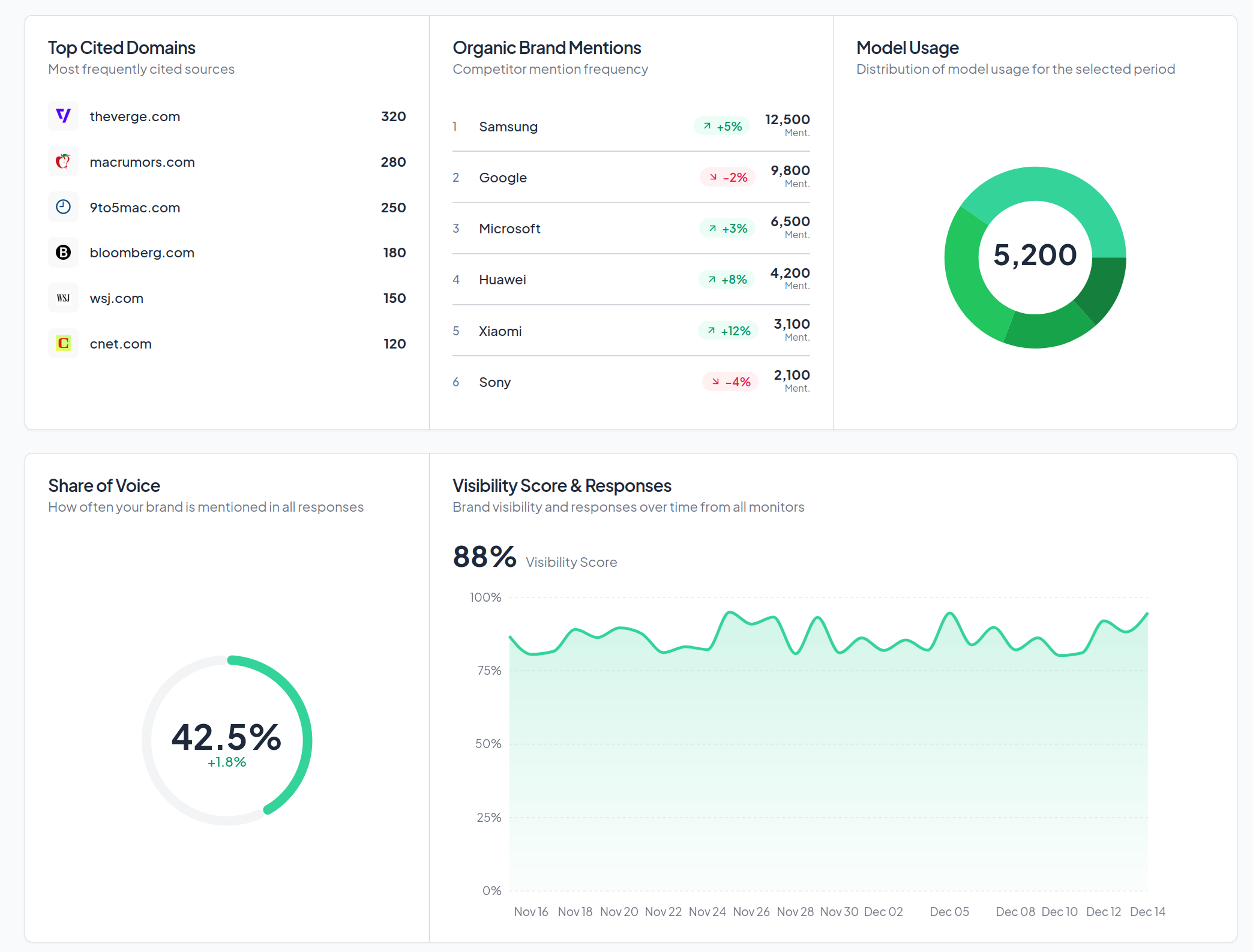
What is a Monitor?
A monitor is a collection of prompts organized around a topic. For example, a "CRM Software" monitor might include prompts like:
- "What's the best CRM for small businesses?"
- "Compare Salesforce vs HubSpot"
- "Top CRM tools for startups"
Each monitor runs on a schedule, querying AI platforms and capturing their responses.
Creating a Monitor
Navigate to Monitors
From your workspace, click Monitors in the sidebar.
Click New Monitor
The monitor creation form will appear.
Configure your monitor
Fill in the following fields:
| Field | Description |
|---|---|
| Topic name | A descriptive name for this monitor (e.g., "Project Management Tools") |
| Status | Active (tracking), Preparing (draft), or Paused |
| Cadence | How often to run: Daily, Weekly, or Manual |
Add prompts
Click Add Prompt to create questions for AI models. See Prompt Types for best practices.
Select channels
Choose which AI platforms to monitor:
- ChatGPT — OpenAI's conversational AI
- Claude — Anthropic's assistant
- Perplexity — Search-focused AI with citations
- Gemini — Google's AI assistant
- Google AI Overviews — AI summaries in Google Search
Save and run
Click Save to create the monitor. Use Run Now to immediately capture responses.
Prompt Types
Different prompt types capture different aspects of your brand visibility:
Discovery Prompts
These simulate how customers discover solutions in your category.
What are the best [category] tools?
Top [category] software for [use case]
Best alternatives to [competitor]
Example: "What are the best email marketing tools for ecommerce?"
Comparison Prompts
These directly compare your brand to competitors.
Compare [your brand] vs [competitor]
[Your brand] or [competitor], which is better?
Pros and cons of [your brand] compared to [competitor]
Example: "Compare Mailchimp vs Klaviyo for email marketing"
Objection Prompts
These address common customer concerns.
Is [your brand] worth the price?
What are the downsides of [your brand]?
[Your brand] reviews and complaints
Example: "Is HubSpot too expensive for startups?"
Recommendation Prompts
These simulate users asking for direct recommendations.
What [category] should I use for [use case]?
Recommend a [category] for [company size/type]
Which [category] is best for [specific need]?
Example: "What CRM should a B2B SaaS startup use?"
Monitor Status
Monitors can be in one of four states:
| Status | Description |
|---|---|
| Tracking | Active and running on schedule |
| Preparing | Draft mode, not yet running |
| Paused | Temporarily stopped |
| Archived | Inactive, preserved for historical data |
Run Cadence
Choose how often your monitor runs:
- Daily: Best for competitive categories with frequent AI updates
- Weekly: Good for stable categories, reduces response volume
- Manual: Run on-demand, useful for spot checks
Daily monitoring uses more of your monthly response quota. Consider weekly for less critical topics.
Understanding Results
After a monitor runs, you'll see:
Summary View
- Total responses collected
- Channels queried
- Last run timestamp
- Next scheduled run
Response Analysis
Click into any monitor to see:
- Individual AI responses
- Brand mention frequency
- Competitor mentions
- Citation sources
Best Practices
Start focused
Begin with 5-10 high-priority prompts rather than dozens. Quality over quantity.
Cover the customer journey
Include prompts for each stage:
- Awareness: Category discovery prompts
- Consideration: Comparison prompts
- Decision: Recommendation prompts
Test prompt variations
Try different phrasings of the same question. AI models can give very different answers based on wording.
Monitor competitors too
Add comparison prompts with each major competitor to track how you're positioned relative to them.
Review and iterate
Check your monitor results weekly. Remove prompts that aren't useful, add new ones based on customer feedback.
Troubleshooting
No responses collected
- Check that the monitor status is Tracking
- Verify at least one channel is enabled
- Confirm prompts are saved correctly
Unexpected results
- AI responses are non-deterministic—some variation is normal
- Try running the same prompt manually to compare
Missing brand mentions
- Review your brand settings to ensure aliases are configured
- AI models may not know about newer or niche brands